




멀티미디어 태그

HTML에서 오디오, 비디오, 그래픽 등 다양한 멀티미디어 콘텐츠를 웹 페이지에 삽입하거나 제어할 수 있는 태그를 말합니다.
•
audio
•
video
•
iframe
•
canvas
audio
웹 페이지에서 오디오 파일을 재생할 수 있는 태그입니다.
태그 | 속성 | 설명 | 예시 |
<audio> | src | 오디오 파일의 URL을 지정 | <audio src="sound.mp3"></audio> |
controls | 기본 오디오 컨트롤(재생, 일시 정지 등)을 표시 | <audio controls></audio> | |
autoplay | 페이지 로드 시 자동으로 오디오를 재생 | <audio src="sound.mp3" autoplay></audio> | |
loop | 오디오가 끝난 후 자동으로 다시 시작 | <audio src="sound.mp3" loop></audio> | |
muted | 오디오를 음소거 상태로 설정 | <audio src="sound.mp3" muted></audio> | |
preload | 페이지 로드 시 오디오를 미리 로드할지 여부를 설정 (auto, metadata, none) | <audio src="sound.mp3" preload="auto"></audio> |
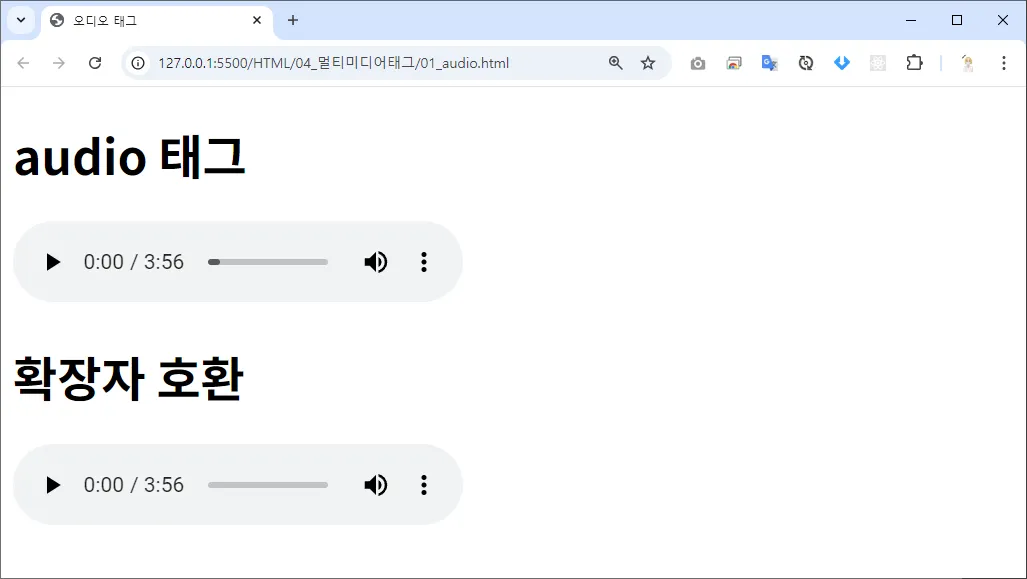
<!DOCTYPE html>
<html lang="en">
<head>
<meta charset="UTF-8">
<meta name="viewport" content="width=device-width, initial-scale=1.0">
<title>오디오 태그</title>
</head>
<body>
<!--
audio 태그 속성
- autoplay : 자동재생
- controls : 오디오 재생/볼륨 컨트롤 표시
- loop : 반복재생
- preload : 오디오 파일 미리 다운로드
- src : 재생할 오디오 파일 경로
- volume : 재생 볼륨 크기 ( 0.0~1.0 )
- audio format(파일 포맷) : mp3, ogg, wav
- MIME type(파일 형식) : audio/mp3, audio/ogg, audio/wav
-->
<h1>audio 태그</h1>
<audio src="audio/audio.mp3" controls></audio>
<h1>확장자 호환</h1>
<audio controls autoplay>
<source src="audio/audio.mp3" type="audio/mp3">
<source src="audio/audio.ogg" type="audio/ogg">
<source src="audio/audio.wav" type="audio/wav">
</audio>
<!--
source
: 브라우저마다 지원하는 오디오 파일 형식을 호환시켜주기 위한 태그
-->
</body>
</html>
HTML
복사
video
웹 페이지에서 비디오 파일을 재생할 수 있는 태그입니다.
태그 | 속성 | 설명 | 예시 |
<video> | src | 비디오 파일의 URL을 지정 | <video src="movie.mp4"></video> |
controls | 기본 비디오 컨트롤(재생, 일시 정지 등)을 표시 | <video controls></video> | |
autoplay | 페이지 로드 시 자동으로 비디오를 재생 | <video src="movie.mp4" autoplay></video> | |
loop | 비디오가 끝난 후 자동으로 다시 시작 | <video src="movie.mp4" loop></video> | |
muted | 비디오의 소리를 음소거 상태로 설정 | <video src="movie.mp4" muted></video> | |
preload | 페이지 로드 시 비디오를 미리 로드할지 여부를 설정 (auto, metadata, none) | <video src="movie.mp4" preload="auto"></video> | |
width | 비디오의 가로 크기를 설정 | <video src="movie.mp4" width="640"></video> | |
height | 비디오의 세로 크기를 설정 | <video src="movie.mp4" height="360"></video> |
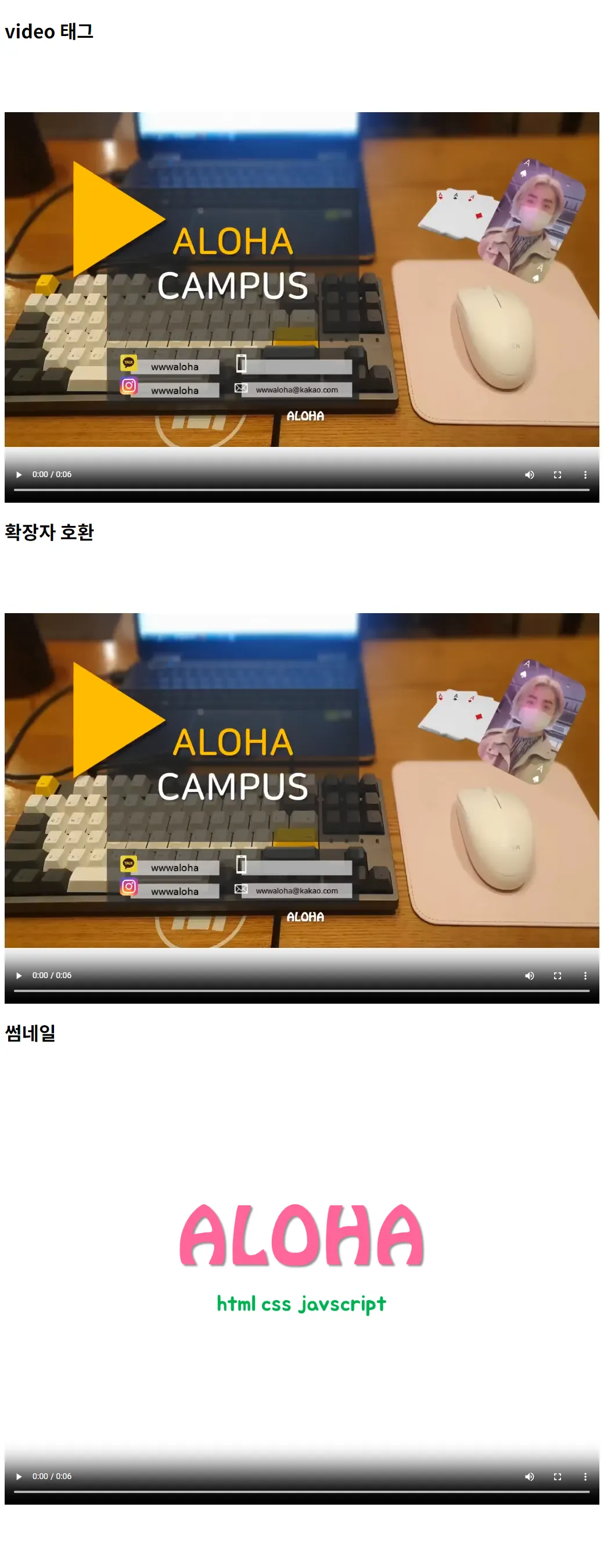
<!DOCTYPE html>
<html lang="en">
<head>
<meta charset="UTF-8">
<meta name="viewport" content="width=device-width, initial-scale=1.0">
<title>비디오 태그</title>
</head>
<body>
<!--
video 태그 속성
- autoplay : 자동재생
- controls : 오디오 재생/볼륨 컨트롤 표시
- loop : 반복재생
- preload : 파일 미리 다운로드
- src : 재생할 오디오 파일 경로
- volume : 재생 볼륨 크기 ( 0.0~1.0 )
- poster : 썸네일 이미지
- muted : 비디오의 오디오 음소거
- width/height : 비디오 가로 세로 사이즈
- video format(파일포맷) : mp4, webm, ogg
- MIME type (파일형식) : video/mp4, video/webm, video/ogg
-->
<h1>video 태그</h1>
<video src="video/video.mp4" autoplay controls
width="1024" height="768"></video>
<h1>확장자 호환</h1>
<video width="1024" height="768" controls>
<source src="video/video.mp4" type="video/mp4">
<source src="video/video.ogg" type="video/ogg">
<source src="video/video.webm" type="video/webm">
</video>
<h1>썸네일</h1>
<video src="video/video.mp4" controls width="1024" height="768"
poster="img/poster.jpg"></video>
<div style="height: 500px;"></div>
</body>
</html>
HTML
복사
iframe
다른 웹 페이지를 현재 페이지 내에 삽입할 수 있는 태그입니다.
태그 | 속성 | 설명 | 예시 |
<iframe> | src | iframe의 콘텐츠를 로드할 URL을 지정 | <iframe src="https://example.com"></iframe> |
width | iframe의 가로 크기를 설정 | <iframe src="https://example.com" width="600"></iframe> | |
height | iframe의 세로 크기를 설정 | <iframe src="https://example.com" height="400"></iframe> | |
title | iframe의 콘텐츠를 설명하는 제목을 설정 | <iframe src="https://example.com" title="Description"></iframe> | |
frameborder | iframe의 테두리 설정 (0 또는 1) | <iframe src="https://example.com" frameborder="0"></iframe> | |
allowfullscreen | iframe의 콘텐츠를 전체 화면 모드로 표시할 수 있게 허용 | <iframe src="https://example.com" allowfullscreen></iframe> |
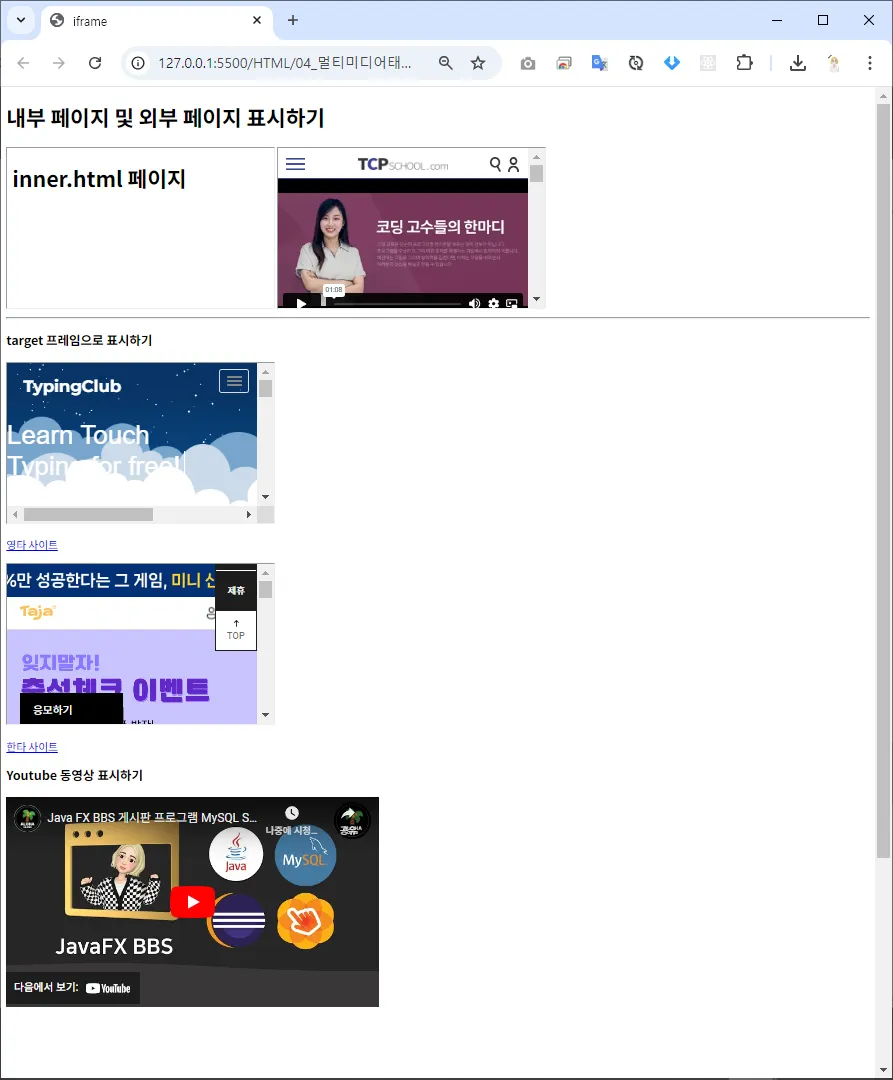
<!DOCTYPE html>
<html lang="en">
<head>
<meta charset="UTF-8">
<meta name="viewport" content="width=device-width, initial-scale=1.0">
<title>iframe</title>
</head>
<body>
<!--
iframe (inline frame)
: 웹 페이지 안에서 다른 웹 페이지를 표시하는 태그
- name 속성을 지정하면 target 프레임으로 사용할 수 있다
- naver, google 등 일부 사이트에서는 iframe 을 통해 접근을 막고 있다.
-->
<h1>내부 페이지 및 외부 페이지 표시하기</h1>
<iframe src="03.inner.html" width="400" height="240"></iframe>
<iframe src="http://www.tcpschool.com" width="400" height="240"></iframe>
<hr>
<h3>target 프레임으로 표시하기</h3>
<iframe src="" name="frame1" width="400" height="240"></iframe>
<p>
<a href="http://typingclub.com" target="frame1">영타 사이트</a>
</p>
<iframe src="" name="frame2" width="400" height="240"></iframe>
<p>
<a href="http://hancomtyping.com" target="frame2">한타 사이트</a>
</p>
<h3>Youtube 동영상 표시하기</h3>
<iframe width="560" height="315" src="https://www.youtube.com/embed/zsA3gixXHNk?si=9_tpK6zy8vjqDHIW"
title="YouTube video player" frameborder="0"
allow="accelerometer; autoplay; clipboard-write; encrypted-media; gyroscope; picture-in-picture; web-share"
referrerpolicy="strict-origin-when-cross-origin" allowfullscreen></iframe>
<div style="height: 500px;"></div>
</body>
</html>
HTML
복사
canvas
그래픽을 그리거나 애니메이션을 만들 수 있는 영역을 제공합니다.
 JavaScript와 함께 사용되어 동적인 그래픽을 생성할 수 있습니다.
태그 | 속성 | 설명 | 예시 |
<canvas> | width | 캔버스의 가로 크기를 설정 | <canvas width="500"></canvas> |
height | 캔버스의 세로 크기를 설정 | <canvas height="300"></canvas> | |
id | 캔버스 요소의 식별자 | <canvas id="myCanvas"></canvas> | |
style | 캔버스의 CSS 스타일을 설정 | <canvas style="border:1px solid #000;"></canvas> |
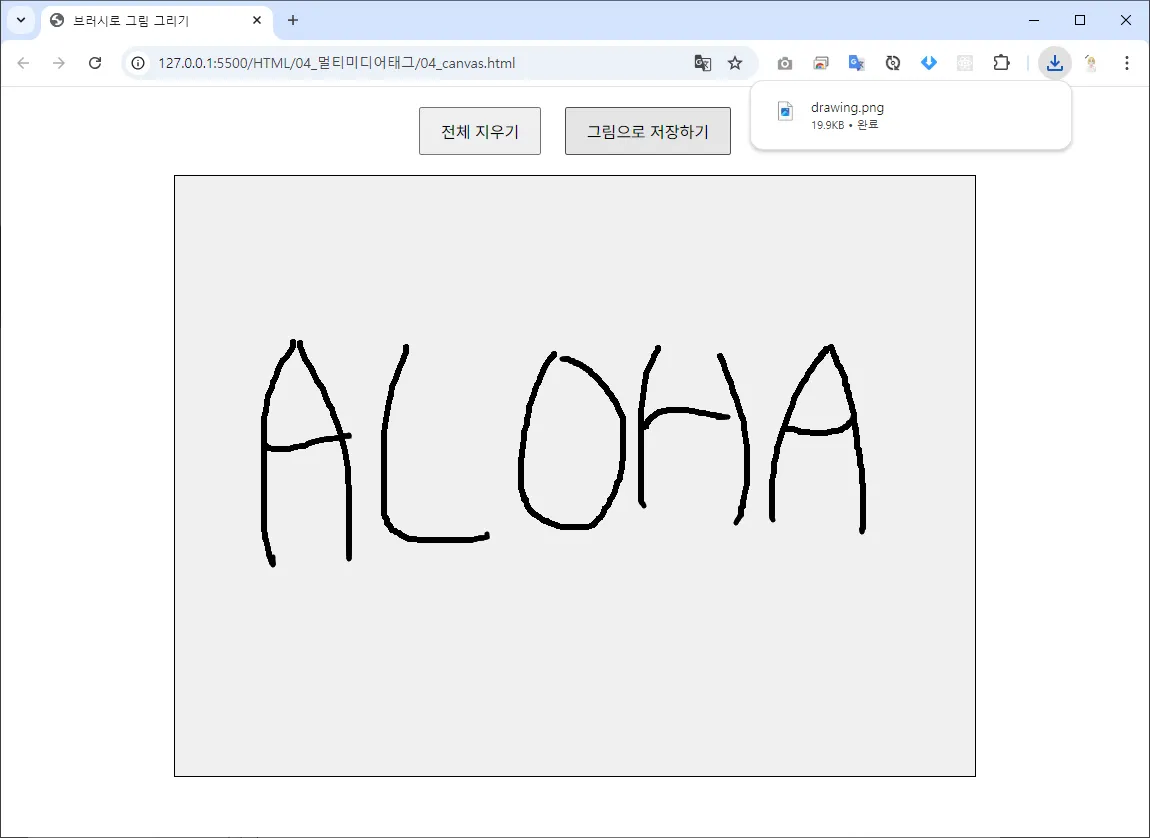
<!DOCTYPE html>
<html lang="en">
<head>
<meta charset="UTF-8">
<meta name="viewport" content="width=device-width, initial-scale=1.0">
<title>브러시로 그림 그리기</title>
<style>
canvas {
border: 1px solid black;
display: block;
margin: 0 auto;
background-color: #f0f0f0;
}
.controls {
text-align: center;
margin: 20px;
}
button {
margin: 0 10px;
padding: 10px 20px;
font-size: 16px;
cursor: pointer;
}
</style>
</head>
<body>
<div class="controls">
<button id="clearBtn">전체 지우기</button>
<button id="saveBtn">그림으로 저장하기</button>
</div>
<canvas id="myCanvas" width="800" height="600"></canvas>
<script>
const canvas = document.getElementById('myCanvas');
const ctx = canvas.getContext('2d');
let drawing = false;
// 마우스 다운 이벤트 핸들러
canvas.addEventListener('mousedown', (e) => {
drawing = true;
ctx.beginPath();
ctx.moveTo(e.clientX - canvas.offsetLeft, e.clientY - canvas.offsetTop);
});
// 마우스 업 이벤트 핸들러
canvas.addEventListener('mouseup', () => {
drawing = false;
});
// 마우스 이동 이벤트 핸들러
canvas.addEventListener('mousemove', (e) => {
if (drawing) {
ctx.lineTo(e.clientX - canvas.offsetLeft, e.clientY - canvas.offsetTop);
ctx.strokeStyle = 'black'; // 선 색상
ctx.lineWidth = 5; // 선 두께
ctx.lineCap = 'round'; // 선 끝 모양
ctx.stroke();
}
});
// 마우스 떠나기 이벤트 핸들러
canvas.addEventListener('mouseleave', () => {
if (drawing) {
drawing = false;
}
});
// 전체 지우기 버튼 이벤트 핸들러
document.getElementById('clearBtn').addEventListener('click', () => {
ctx.clearRect(0, 0, canvas.width, canvas.height);
});
// 그림으로 저장하기 버튼 이벤트 핸들러
document.getElementById('saveBtn').addEventListener('click', () => {
const link = document.createElement('a');
link.href = canvas.toDataURL('image/png');
link.download = 'drawing.png';
link.click();
});
</script>
</body>
</html>
HTML
복사


